


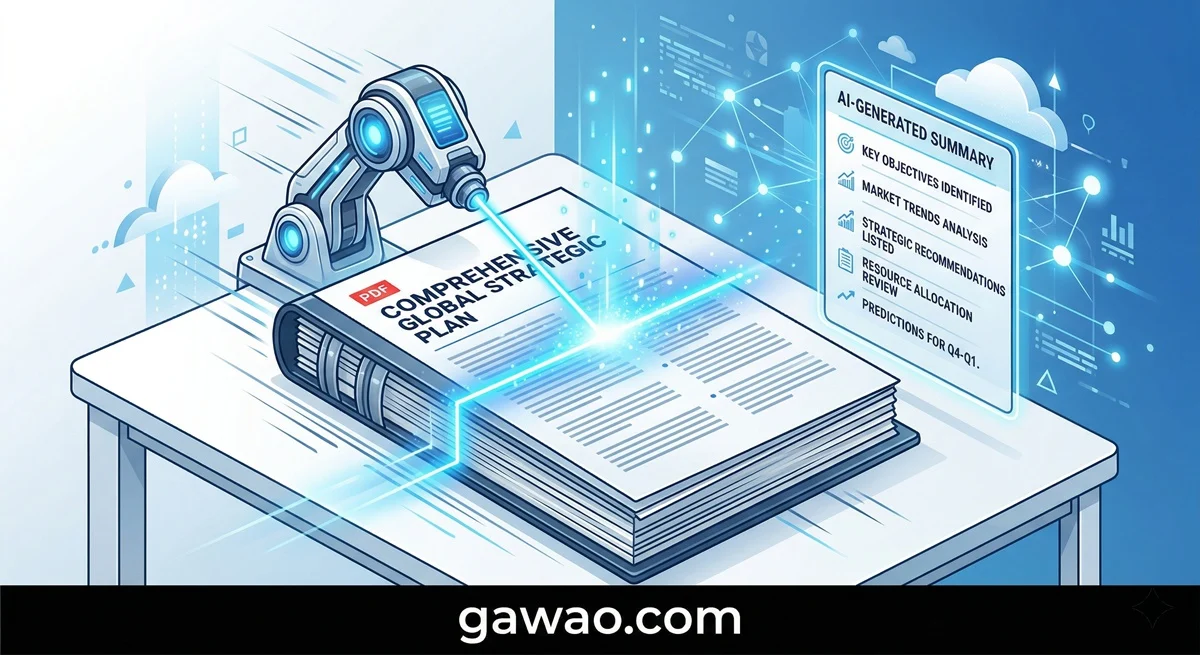
The Problem: 50 Pages You Don’t Have Time to Read
Annual reports. Employment contracts. Academic papers. Product manuals. They’re all long, dense, and designed to make most people skip straight to the parts they actually need.
You’re not lazy for wanting a shortcut — you’re efficient.
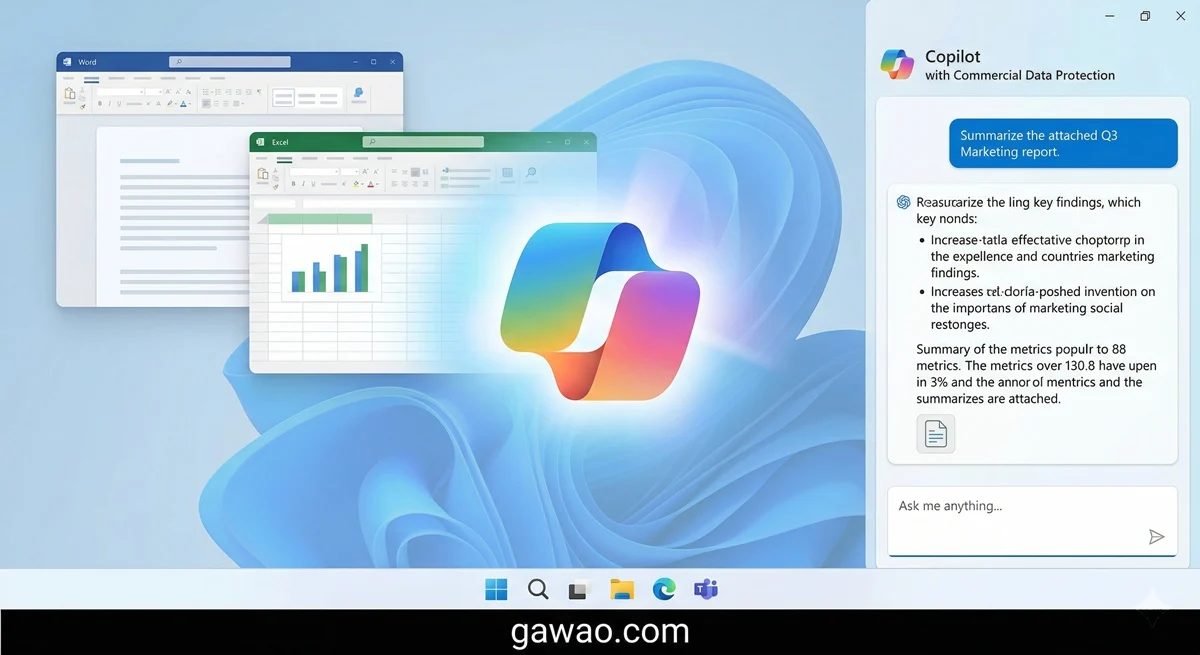
The good news? Modern AI has solved this problem completely. ChatGPT, Gemini, Claude, and specialized PDF reading tools can now digest a 50-page document in seconds, extract the key points, and answer specific questions about the content. All for free.
Which AI Tools Can Read PDFs?
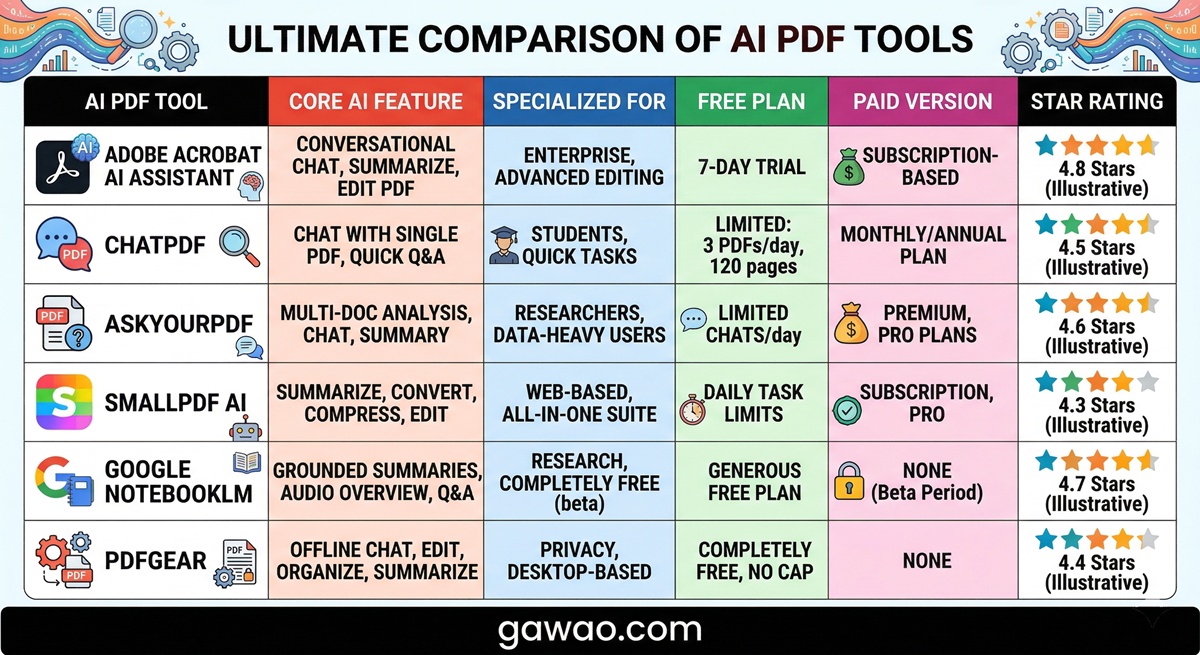
| Tool | Free or Paid | Max File Size | Best For |
|---|---|---|---|
| ChatGPT (Free) | Free | ~50 MB | Accurate Q&A on documents |
| Gemini (Free) | Free | ~20 MB | Direct Google Drive integration |
| Claude (Free) | Free | ~100 pages | Reading very long documents |
| Google NotebookLM | Free | Multiple files | Research and multi-document analysis |
| ChatPDF | Free (limited) | 50 pages/free | Easiest user interface |
💡 Best for beginners: Start with ChatPDF at chatpdf.com because it’s designed specifically for PDFs. No signup required — just upload and start asking questions.
How to Use ChatGPT to Read and Summarize PDFs
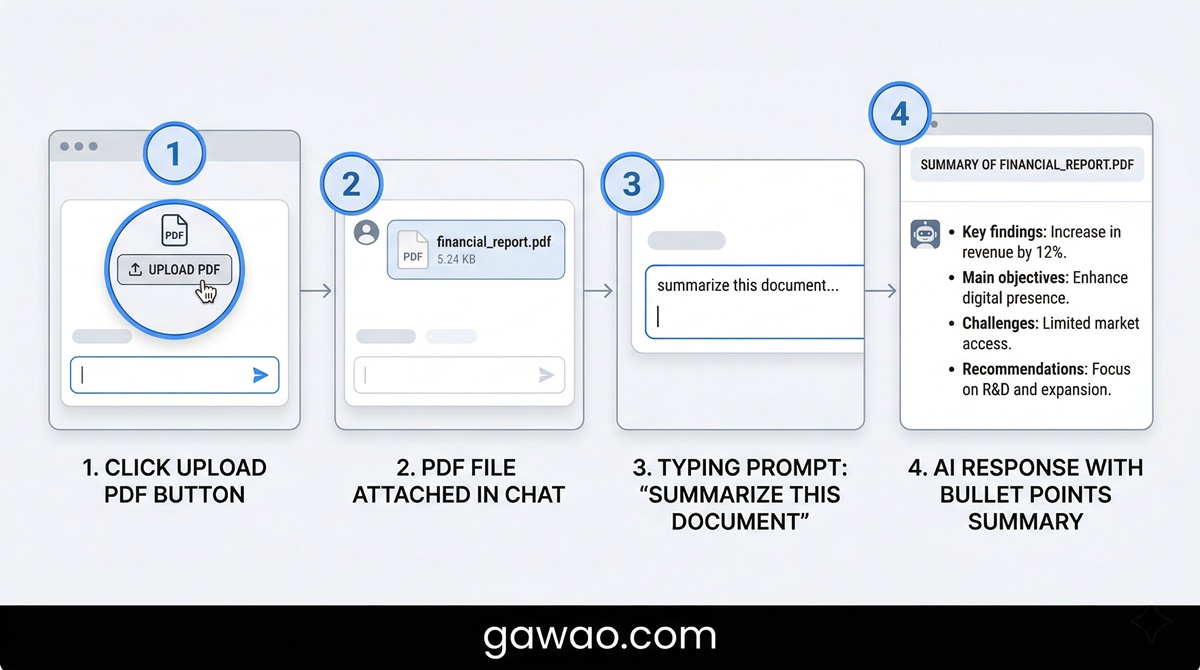
Step 1: Upload Your File
- Go to chat.openai.com
- Click the “+” button or “Attach files” button next to the message box
- Select a PDF from your computer
- Wait for the upload to complete (the file will appear in the chat)
Step 2: Ask with the Right Prompt
After uploading, try these prompts:
Get a quick overview:
“Summarize the main points of this document in 5 key takeaways.”
Find specific information:
“What does this document say about [specific topic]?”
Extract all numbers and statistics:
“Pull out all the important numbers, figures, and statistics from this document.”
Get action items:
“Based on this document, what are the main action items or next steps?”
Flag potential issues:
“Are there any concerning, unusual, or problematic sections in this document?”
How to Use Gemini to Read PDFs Through Google Drive
Gemini has a unique advantage: it integrates directly with Google Drive, so you don’t need to download or re-upload files.
Method 1: Direct Upload
- Open gemini.google.com
- Click the “+” icon in the message box
- Select “Upload from computer”
- Upload your PDF and start asking questions immediately
Method 2: Via Google Drive (Recommended)
- Upload your PDF to Google Drive first
- Open Gemini and type: “Summarize the file [filename] in my Google Drive”
- Gemini will access the file and provide a summary directly
How to Use Google NotebookLM for Research and Multiple Documents
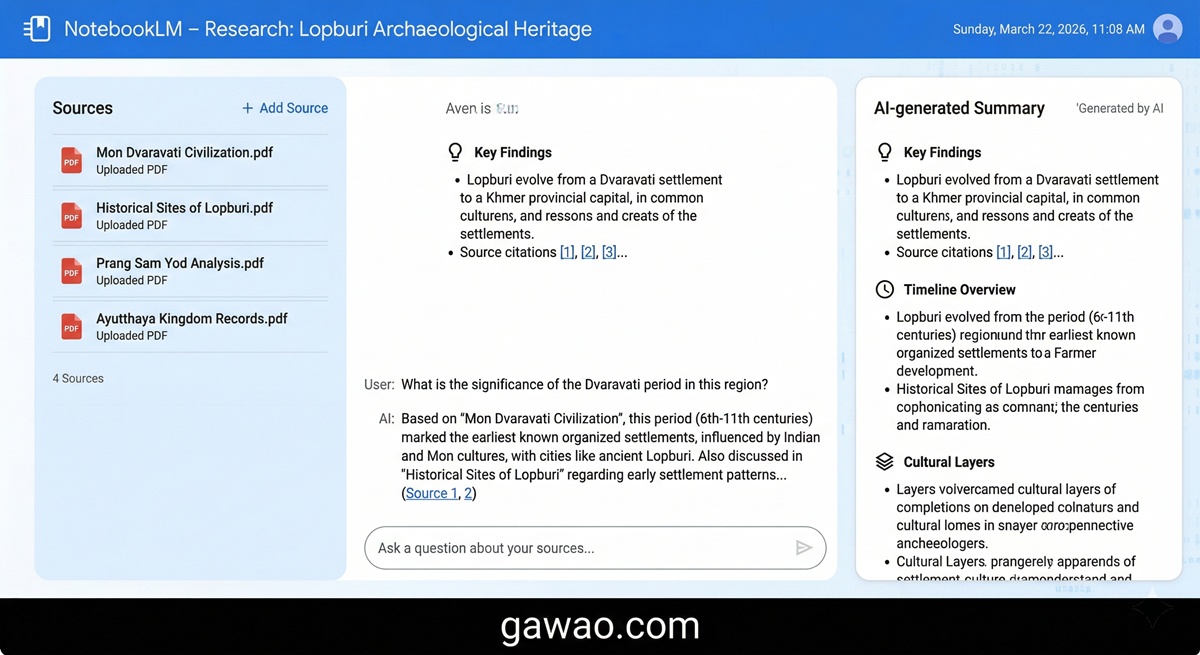
If you need to read several documents at once, Google NotebookLM is your best choice.
- Visit notebooklm.google.com
- Create a new Notebook
- Click “+ Add source” and upload multiple PDFs
- AI automatically generates FAQs, summaries, and timelines
- Ask cross-document questions like: “Do both reports agree on this point?”
✅ Ideal for: Students, researchers, lawyers, or anyone analyzing multiple documents simultaneously.
Advanced Prompts for Different Document Types
For contracts or legal documents:
“Review this agreement and tell me which clauses I should pay close attention to or need clarification on.”
For financial reports:
“Summarize the key business results in this report and flag any numbers that look concerning.”
For research papers or theses:
“Summarize the abstract, objectives, methodology, findings, and conclusion of this research.”
For user manuals or guides:
“I need to [accomplish something specific]. How do I do it according to this manual?”
For meeting notes or transcripts:
“What were the main decisions, action items, and deadlines discussed?”
Important Limitations to Know
While AI can read PDFs effectively, there are some constraints:
- Scanned documents (images of paper) may be harder to read unless they’ve been run through OCR first
- Critical financial accuracy — always double-check numbers from contracts and financial documents against the original
- Password-protected files must be unlocked before uploading
- Very large files may hit upload limits (ChatGPT: ~50 MB, Claude: ~100 pages)
⚠️ Security warning: Never upload confidential documents (passports, ID cards, bank statements, or trade secrets) to public AI services. Your data may be stored and used for model improvement.
Summary
Using AI to read and summarize PDFs is no longer a luxury — it’s standard practice. With just a few clicks and the right prompt, you can extract the essential information from lengthy documents in under a minute.
Start with non-confidential documents, experiment with different prompts, and you’ll wonder how you ever managed without this.
FAQ
Q: Can I upload very large PDFs? A: It depends on the tool. ChatGPT handles up to ~50 MB, Claude up to ~100 pages. For larger files, Google NotebookLM is more forgiving.
Q: Can AI read PDFs in other languages? A: Yes, but scanned PDFs (image-based) are harder to process. Use OCR tools like Adobe Acrobat to convert scans to text first.
Q: Will my uploaded PDFs be kept or used for training? A: OpenAI and Google may store data to improve their systems. You can disable this in Settings for privacy.
Q: What’s the difference between ChatGPT, Claude, and Gemini for PDF reading? A: Claude handles the longest documents best (~100 pages), ChatGPT is most accurate for Q&A, and Gemini integrates best with Google services.
Q: Is AI-generated summarization accurate enough for legal or financial decisions? A: Use it as a starting point, not a final authority. Always review critical documents yourself, especially contracts and financial statements.
References
Published on: gawao.com | Category: AI Tools | April 2026