



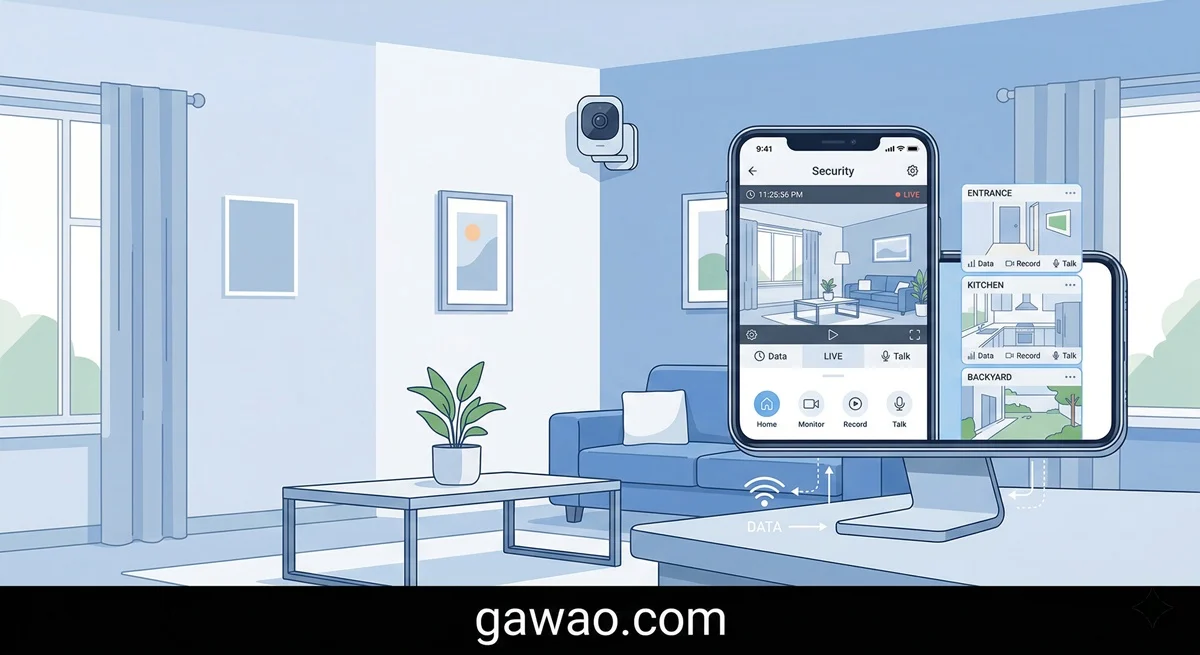
There’s never been a better time to set up home security cameras. Modern IP cameras connect over WiFi, send alerts to your phone the moment something moves, and let you watch a live feed from anywhere — no professional installation required.
This guide walks you through everything: choosing the right camera, connecting it to your network, setting up recordings and motion alerts, and making sure it’s actually secure.
IP Camera vs Traditional CCTV: What’s the Difference?
If you’ve looked at home security options before, you’ve probably seen both WiFi IP cameras and traditional wired CCTV systems. Here’s how they compare:
| Feature | IP Camera (WiFi) | Traditional CCTV (Analog) |
|---|---|---|
| Installation | ✅ DIY, no wiring needed | ❌ Requires a technician and cabling |
| Remote viewing | ✅ Watch from anywhere via phone | ❌ Requires DVR + port forwarding setup |
| Image quality | ✅ HD to 4K | ⚠️ Mostly SD to 1080p |
| Cost | ✅ From ~$15–$60 per camera | ⚠️ Higher upfront cost |
| Reliability | ⚠️ Depends on WiFi strength | ✅ More stable, no dropouts |
| Data privacy | ⚠️ Needs proper configuration | ✅ No cloud connection |
For most homes, WiFi IP cameras are the practical choice — fast to set up, easy to manage, and affordable enough to put in multiple rooms.
Recommended IP Cameras for Beginners
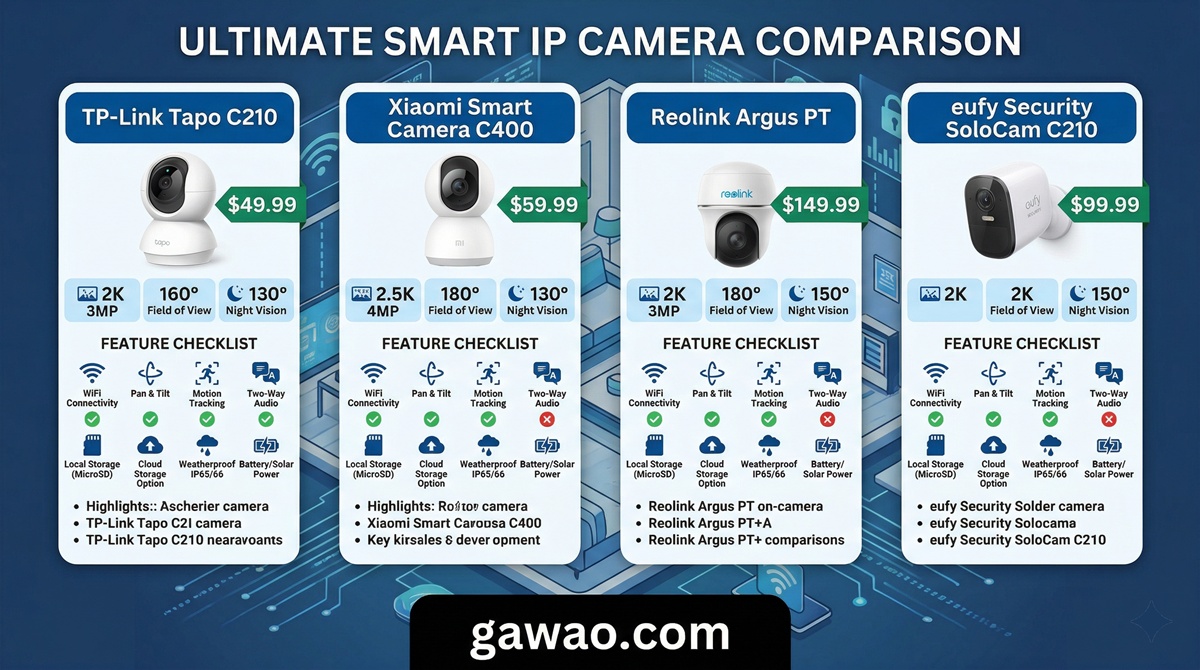
| Brand / Model | Approx. Price | Highlights |
|---|---|---|
| TP-Link Tapo C200 | ~$20–$30 | Pan/tilt 360°, intuitive app, budget-friendly |
| Xiaomi Mi Home Camera | ~$18–$28 | Low cost, solid app, Google Home support |
| Reolink E1 Pro | ~$35–$55 | Sharp 5MP image, easy setup |
| Eufy 2K Indoor | ~$45–$60 | Local storage, no cloud required |
| Google Nest Cam | ~$90–$100 | Best Google Home integration |
💡 Best for beginners: TP-Link Tapo C200 — affordable, reliable, straightforward app, and one of the most popular home cameras worldwide.
Step-by-Step: Setting Up Your IP Camera
Step 1: Choose the Right Location
Placement makes a huge difference in how useful your camera actually is.
Best spots to cover:
- Front door and back door
- Living room — covering valuables and main entrance
- Garage or parking area
- Hallways or stairways connecting areas of the home
Things to check before mounting:
- Make sure a power outlet is within reach — or choose a battery-powered camera if wiring isn’t possible
- Test your WiFi signal at the spot using your phone before mounting anything
- Avoid pointing the camera directly at a bright window or light source — it will cause the image to appear washed out or too dark
Height tip: Mount cameras 7–9 feet (2–2.7 meters) off the floor for the best coverage angle while keeping them out of easy reach.
Step 2: Download the App and Create an Account
Each brand uses its own app for setup and viewing:
- TP-Link Tapo → Download the “Tapo” app
- Xiaomi → Download “Mi Home” or “Xiaomi Home”
- Reolink → Download “Reolink”
- Eufy → Download “eufy Security”
Create an account and log in before starting the camera setup. Use a strong, unique password — you’ll see why this matters in the security section below.
Step 3: Connect the Camera to WiFi
Most IP cameras follow the same basic pairing process:
- Plug in the camera and wait for the status light to blink (this means it’s in pairing / ready mode)
- Open the app → tap Add Device or the + button
- Select your camera model → scan the QR code printed on the bottom or back of the camera
- Enter your WiFi name (SSID) and password
- Wait for the app to complete the connection — usually takes 1–3 minutes
⚠️ Important: Most IP cameras only support 2.4 GHz WiFi, not 5 GHz. If your router broadcasts both frequencies under the same network name (common with mesh routers), you may need to temporarily separate them or connect your phone to the 2.4 GHz band before pairing. Check your router settings if the camera fails to connect.
Once connected, the status light will stop blinking and go solid. You should see a live preview in the app within seconds.
Step 4: Set Up Recording
You have three main options for storing your camera footage:
MicroSD Card (Recommended for beginners) Insert a MicroSD card directly into the camera’s card slot. Most cameras accept cards up to 128 GB or 256 GB. Use a Class 10 or UHS-I rated card for reliable write speeds. A 64 GB card (~$8–$12) stores roughly 3–5 days of continuous 1080p footage on loop.
Cloud Storage Footage is uploaded to the brand’s servers automatically. Convenient for access anywhere, but comes with a monthly subscription fee ($2–$10/month depending on the plan). Also means your footage is stored on someone else’s servers.
NAS (Network Attached Storage) A home server that stores footage locally with no monthly fees. Higher upfront cost, but gives you full control over your data. Best for users with multiple cameras or strong privacy preferences.
💡 Beginner recommendation: Start with a 64 GB MicroSD card. It’s cheap, easy, and keeps your footage local without any ongoing costs.
Step 5: Configure Motion Detection Alerts
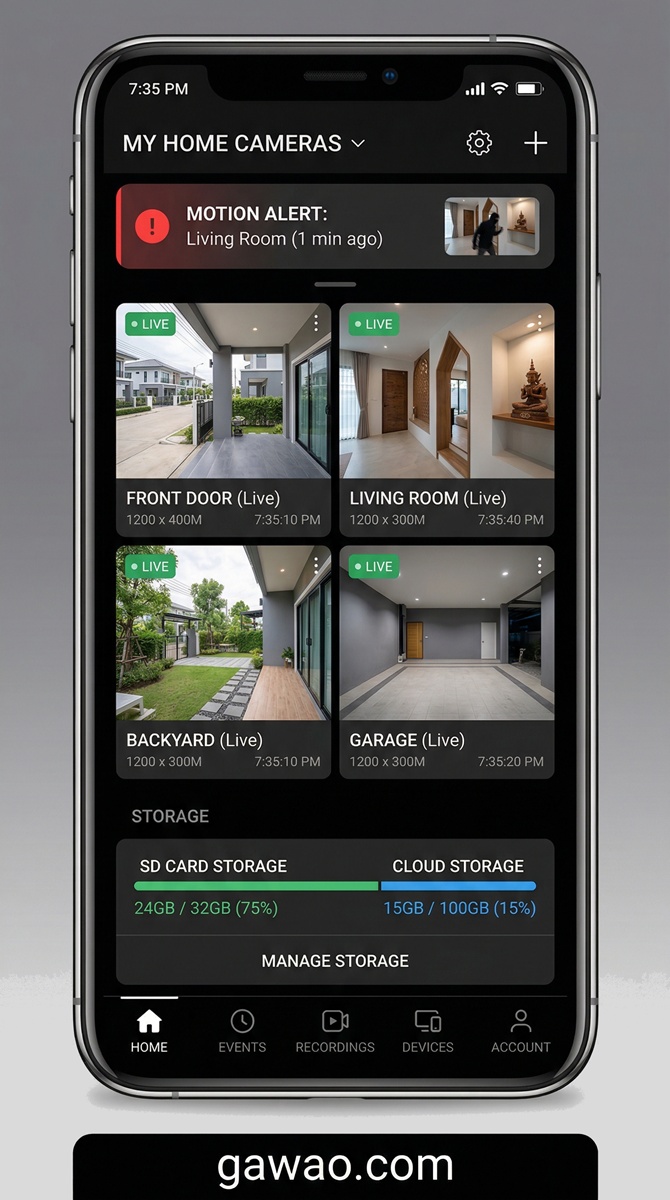
Motion alerts are one of the most useful features of an IP camera — your phone gets notified the moment something moves in frame.
How to set it up:
- Open the app → select your camera → go to Settings
- Enable Motion Detection and adjust the sensitivity slider
- Draw a Detection Zone to limit alerts to a specific area — for example, just the doorway rather than the entire room. This dramatically reduces false alerts.
- Set a Schedule to only receive alerts during specific hours — for example, 10 PM to 6 AM when the house is empty or everyone’s asleep
💡 Keep motion sensitivity at a medium level. Set it too high and you’ll get an alert every time a curtain moves or a car passes outside.
Other alert options worth enabling:
- Person detection — Cameras with AI detection can distinguish between a person and general motion (like pets or shadows), significantly reducing false alarms
- Sound detection — Get alerted when the camera picks up a loud noise like glass breaking or a door slamming
- Smoke/CO alarm detection — Some cameras can listen for smoke detector sounds and alert you remotely
IP Camera Security: What You Need to Know
The convenience of a WiFi-connected camera comes with a real risk that’s easy to overlook. Poorly secured cameras can be remotely accessed by strangers — in some cases live feeds from thousands of home cameras have been streamed publicly online because owners never changed the default password.
Common vulnerabilities:
- Cameras left with factory default passwords (usually “admin” / “1234”)
- Outdated firmware with known security holes
- Cameras from unknown brands that silently transmit data to overseas servers
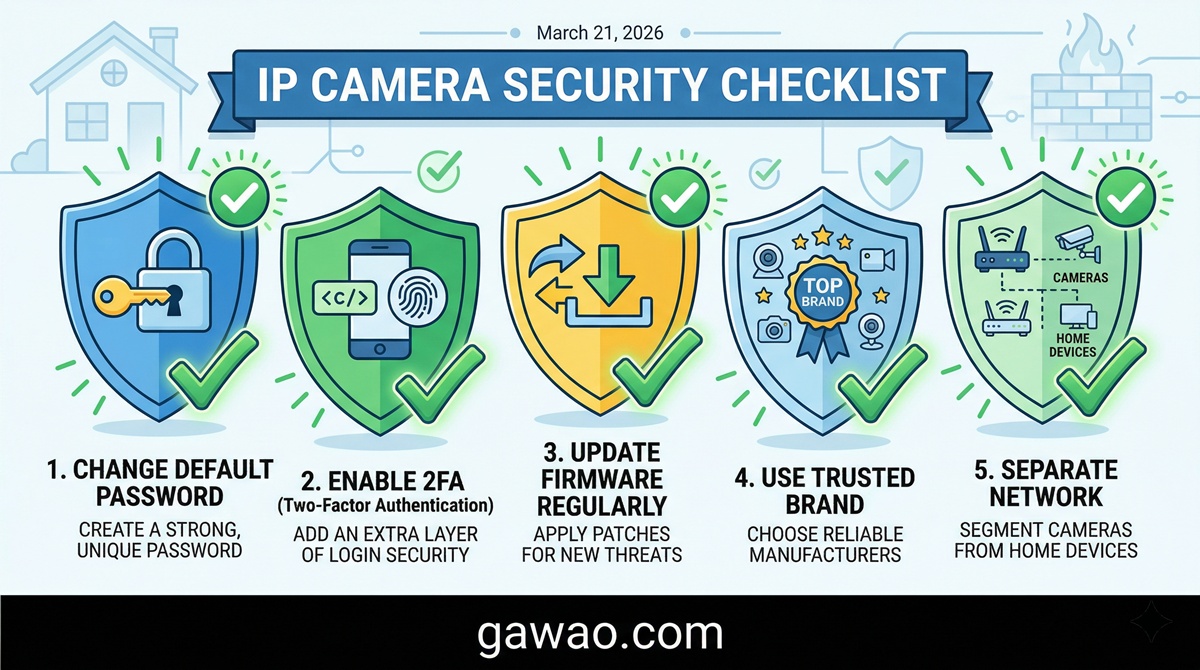
5 steps to secure your camera:
- Change the default password immediately — Use a strong unique password the moment the camera is set up. Never use admin, 1234, or your phone number.
- Enable Two-Factor Authentication (2FA) — If the app supports it, turn it on. This prevents someone who knows your password from logging in without also having your phone.
- Keep firmware updated — Camera manufacturers regularly release updates that patch security vulnerabilities. Check for updates monthly in the app settings.
- Choose a reputable brand — TP-Link, Reolink, Eufy, and Google are more transparent about how they handle your data than lesser-known brands with no privacy documentation.
- Isolate cameras on a guest network — Most modern routers let you create a separate Guest WiFi network. Put your cameras on this network so they can’t communicate with your other devices (computers, phones, smart speakers) even if they were compromised.
Frequently Asked Questions (FAQ)
Q: Can I watch my IP camera from outside my home? A: Yes — that’s one of the biggest advantages of a WiFi IP camera. As long as both your camera and your phone have internet access, you can watch the live feed from anywhere in the world through the app. No VPN or port forwarding needed for most modern cameras.
Q: What happens if the power goes out? Does the camera still work? A: No. IP cameras require power to operate. If power goes out, the camera goes offline. To maintain coverage during outages, you can connect the camera to a UPS (Uninterruptible Power Supply) which provides battery backup for several hours. Alternatively, choose a battery-powered camera model.
Q: Do I need a different camera for indoors vs outdoors? A: Yes. Outdoor cameras must carry a weatherproofing rating of IP65 or higher to handle rain, dust, and temperature changes. Most indoor cameras are not designed for outdoor exposure and will be damaged over time. Always check the product’s IP rating before mounting it outside.
Q: How much WiFi speed do I need? A: A 1080p camera uses approximately 1–2 Mbps of upload bandwidth. If you have 4 cameras streaming simultaneously, you’ll want at least 8 Mbps of upload speed for smooth live viewing. For 4K cameras, multiply those numbers by 3–4. Run a speed test at your router to check your upload speed before buying multiple cameras.
Q: Can I integrate my IP camera with a smart home system? A: Many cameras support Google Home, Amazon Alexa, or Apple HomeKit. TP-Link Tapo and Xiaomi work with Google Home; Eufy supports all three; Google Nest Cam integrates natively with Google Home. Check compatibility before purchasing if smart home integration is important to you.
References
- TP-Link Tapo — WiFi Security Cameras
- Reolink — IP Camera Setup Guide
- Eufy Security — Home Cameras
- FTC — Home Security Camera Privacy Guide
Published on: gawao.com | Category: IT How-To, Smart Home, Security | Last updated: March 2026